


On this page
Multi-Factor Authentication (MFA)
Overview
Multi-Factor Authentication (MFA) adds a second layer of protection when you sign in to Auriga. After entering your credentials, you confirm your identity with a one-time code, so that a stolen or guessed password alone is not enough to access your account.
Who can use MFA
MFA applies to all Auriga users configured on the role-based user management system. No specific permission is required to use it. For more information on user roles, see the Role-based user management (RBUM) article.
Key concepts
Authentication: the process of verifying a user’s identity. It can rely on something you know (a password or PIN), something you have (a smartphone or security key), or something you are (a fingerprint or face).
Multi-Factor Authentication (MFA): authentication that combines at least two different types of factors.
OTP (One-Time Password): a single-use code sent to you to confirm your identity.
Trusted context: Auriga takes into account your approximate location and the device you use. A sign-in from an unfamiliar device or location can trigger an additional verification.
Verification methods
| Method | Availability |
|---|---|
| Email OTP code | Available |
| SMS OTP code | Available |
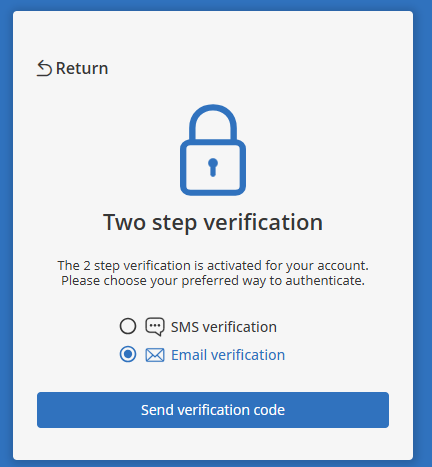
Signing in with an email code
- Enter your username and password.
- Choose email verification.
- Auriga sends a verification code to the email address registered on your account.
- Enter the code on the verification screen to complete your sign-in.
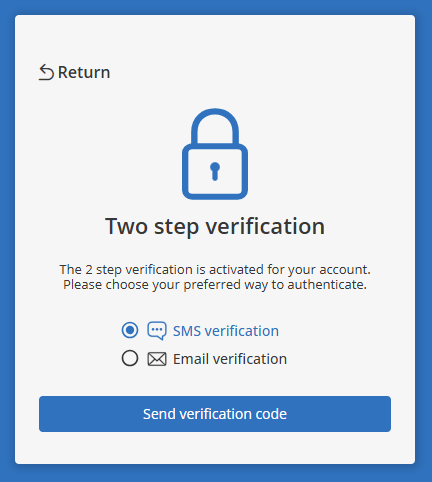
Signing in with an SMS code
- Enter your username and password.
- Choose SMS verification.
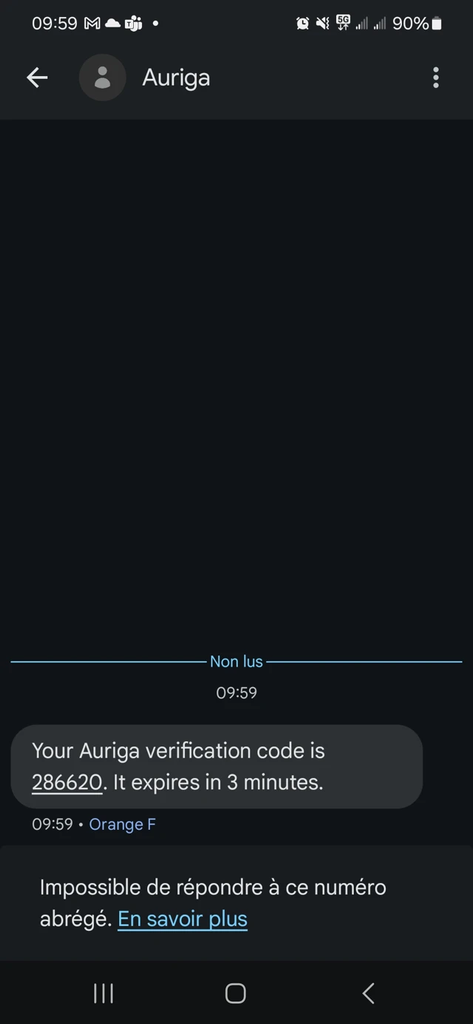
- Auriga sends a verification code by SMS to the phone number registered on your account.
- Enter the code on the verification screen to complete your sign-in.
SMS verification is only available if:
- your user administrator has registered a phone number in your user details, and
- your phone number belongs to a country where SMS verification is supported.
If SMS verification is not available for you, use email verification instead.
Your mobile phone number can only be changed by a user with Administrator rights. To update your mobile number, please contact your account administrator.
Session and password validity
| Item | Validity |
|---|---|
| Access token | 1 hour |
| Refresh token | 7 days |
| Password | 365 days (for users activated since 1 January 2025) |
After a password expires, you are asked to reset it at your next sign-in.
Frequently asked questions
I did not receive my verification code. What should I do?
Check your spam folder if you chose email. If you chose SMS, check that your phone has network coverage and that your administrator has registered the correct number. You can also request a new code or switch to the other verification method.
Why can’t I choose SMS verification?
SMS is unavailable if no phone number is registered on your account, or if your country is not yet supported. Ask your user administrator to check your user details, or use email verification.
Why am I asked for a code even though I just signed in?
Verification can be requested when Auriga detects a new device or an unusual location, or when your session has expired.
Does Auriga protect against repeated failed login attempts?
Yes. Protections include temporary account locking, rate limiting, and a captcha after failed attempts.
Is MFA available for API access?
API access works differently from sign-in by a human user. For API users, we typically provide mutual TLS (mTLS) authentication. Contact your Transatel representative to discuss the right setup for your integration.