On this page
SIM Order
SIM ordering is now available in our SIM Management Portal.
The feature is being rolled out progressively to our customers.
Once SIM ordering is enabled for your account, your Account Manager will contact you to share all details and next steps.
How does SIM order work?
SIM orders is a new section, accessible in Catalogue > Order SIM cards
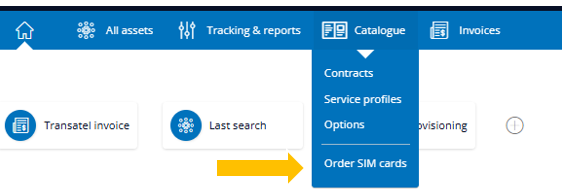
In this menu, you will be able to:
- Order SIM cards
- Validate orders
- Follow-up orders
Creating a new SIM order
Each of these actions is related to a specific scope, so you can give the right accesses to people in your organization
To create a new SIM order, go to Catalogue > Order SIM cards
Click on “ordew new SIMs” on the right side of the screen

A new step by step menu will open.
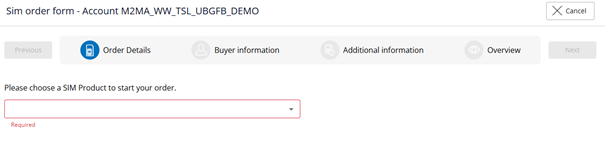
In the 1st step, select the type of SIMs from the dropdown menu.
You should be able to select the standard eSIM or physical SIM types of your offer, and if applicable, the dedicated SIM product of your company.
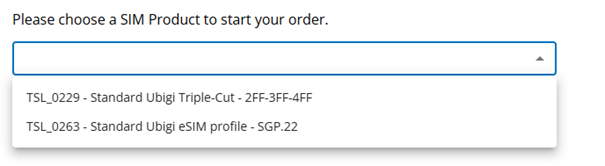
Select a product, and enter the quantity
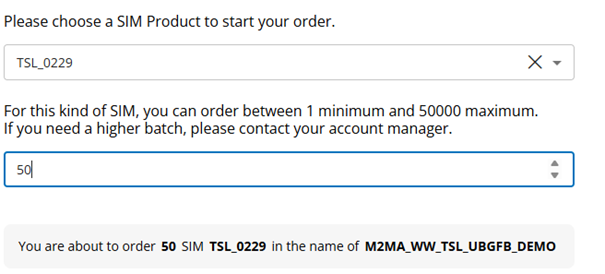
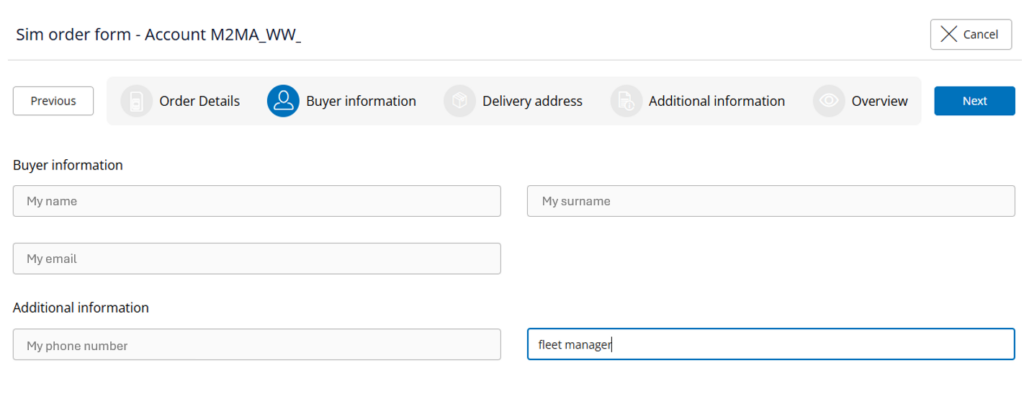
Click on next. In the following menu, check that your contact information is correct, fill in your role and click on next
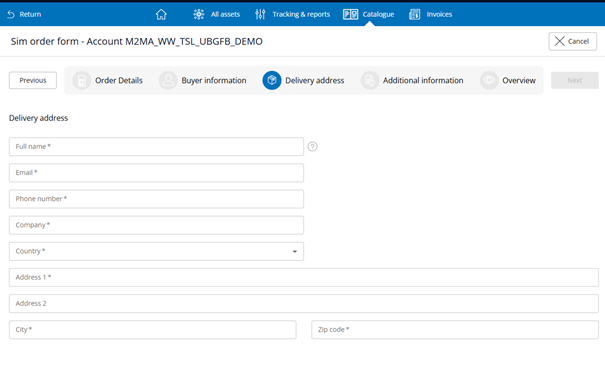
If you are ordering physical SIMs, the next step is the delivery address. (If you are ordering eSIMs, you will be taken to the next step directly)
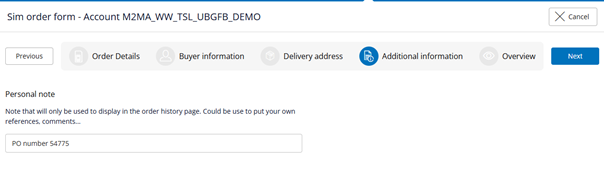
In the next page, you can enter a note to identify the order.
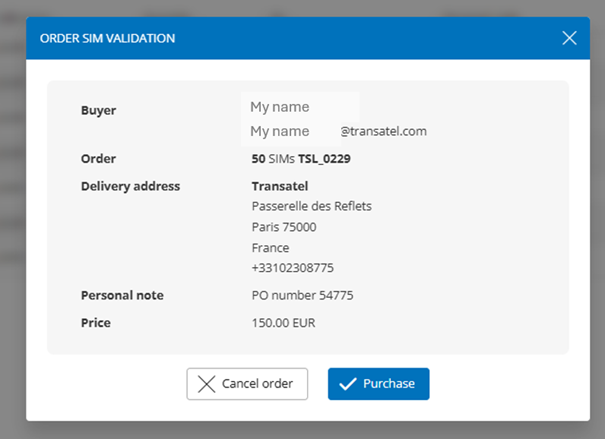
The next page contains your order summary – this is where you can also check the price of the order.
Once you have confirmed that the information is correct, click on “Purchase”
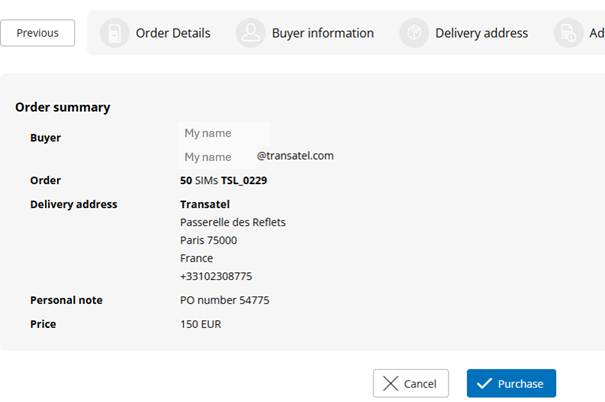
If you have right to validate orders, you will be asked if you want to confirm the order now.
You can also click on “validate later” if you need more time.
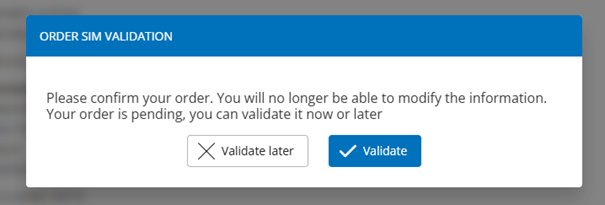
If you do not have the right to validate, the order will remain in the “pending validation” status.
Managing orders
The SIM order menu will display all the orders placed for the account.
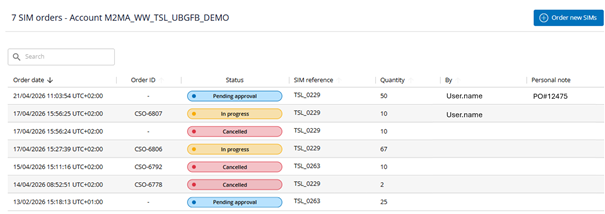
The action column is on the right side, and enables you to:
- See the details of an order
- Validate an order pending validation

Order Validation
An order can be validated:
- Immediately when it is placed, if the user has the right to validate orders
- Any time, by clicking on the “check” icon, and then confirming the order by clicking on “purchase”
Users with the right to validate an order can also cancel an order that has not yet been validated.
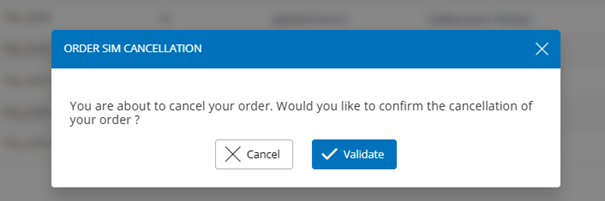
Once an order is validated, it cannot be cancelled. Please contact your Account Manager if an order was placed by mistake.
Order process
The order is first created in the “Pending Validation” status.
Once the order has been validated:
- It will be attributed a CSO (Customer SIM Order) reference appear.
Please use this reference if you have any questions regarding an order.
- The order will switch to the “In Progress” Status

When the SIM cards have been assigned to your account:
- The order will switch to the status “Done”
- The CSO reference will become a link that displays the list of SIMs that have been added to your account as part of this order

Search an order
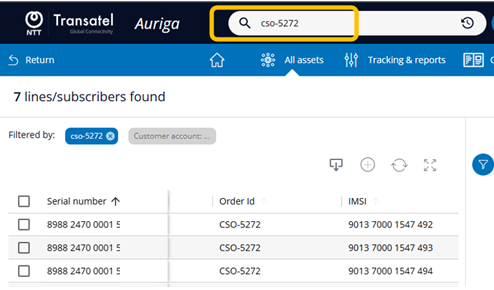
You can search the SIM cards by order reference:
- By typing the CSO reference in the search bar
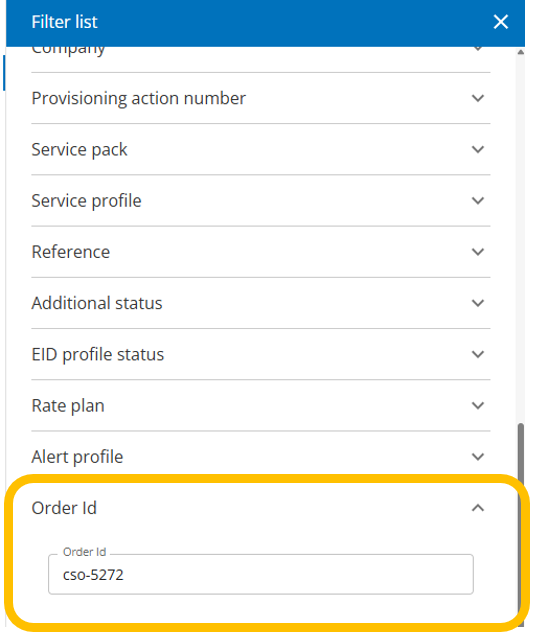
- By using the “Order Id” field in the search panel:
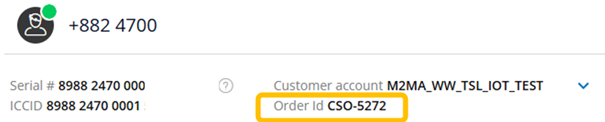
The other way round, you can find the order a SIM comes from in the details of the SIM: