On this page
SIM Details Page
Overview
Clicking on a line from the inventory page, will bring you to a page to explore the details of the SIM.
This page and its tabs will allow you to:
- View or modify the subscriber details
- View or modify the services provisioned on the SIM
- View or modify the bundles on the SIM
- View past actions applied to the SIM
- View and filter the SIM’s usage
- View charging transactions
This is how a SIM’s page looks like in the interface:
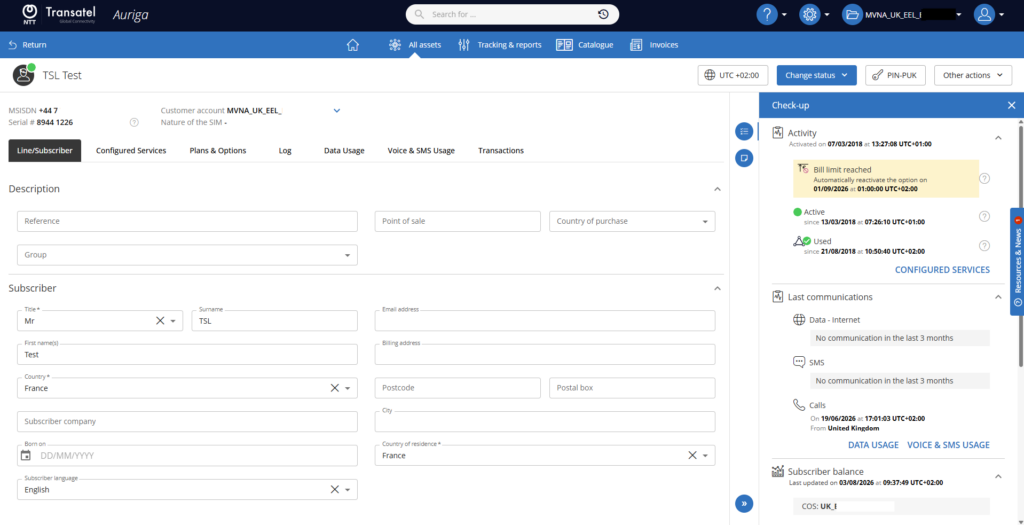
SIM info panel
Underneath the name of the subscriber, you can unfold the block with the SIM’s reference to display more details for the SIM
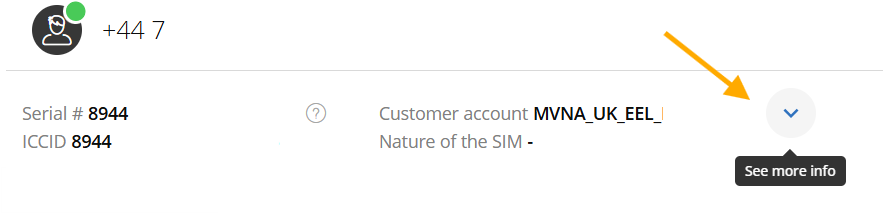
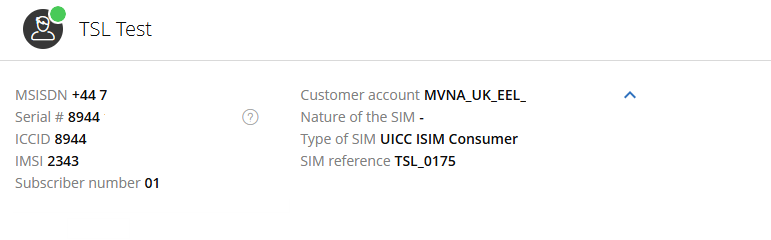
This will allow you to view specific references for the SIM:
- MSISDN
- Serial number
- ICCI
- IMSI
- Subscriber number
- IP Address of the SIM (if the option is subscribed)
- Customer account
- Nature of the SIM
- Type of SIM
- SIM Reference
Under the SIM info panel, on the left-hand side, you have the 5 tabs to access the SIM details, manage plans, configure services, check usage and logs

Action buttons
On the right-hand side, at the top of the screen, you have several action buttons


For an active SIM
These buttons will allow you to:
- Change timezone display
- change status (the choices will depend on your SIM’s current status)
- PIN/PUK display
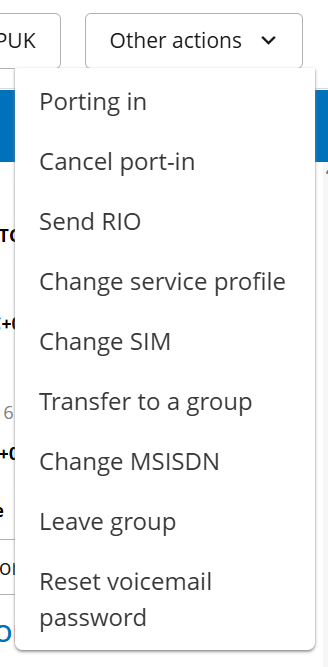
- Other actions: a shortcut to many actions such as changing Service Profiles, Groups…
- Activate the SIM (if the SIM is in the “available” state and has not yet been activated
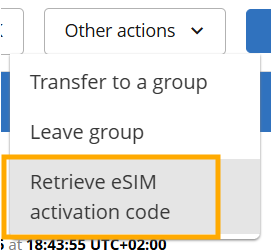
Finding the eSIM Activation Code
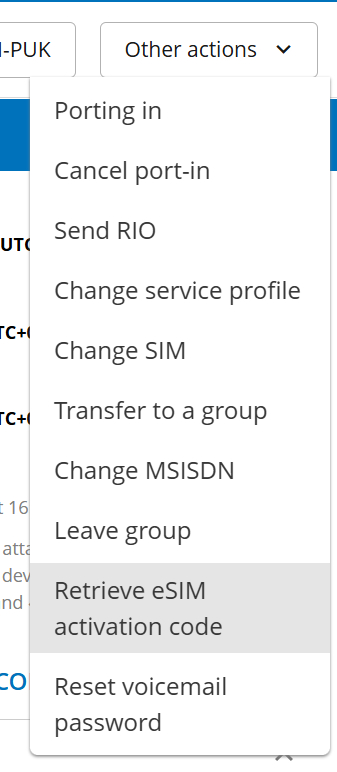
for eSIM profiles, you will also have the option “Retrieve eSIM activation code”
On an available SIM
Checkup Panel
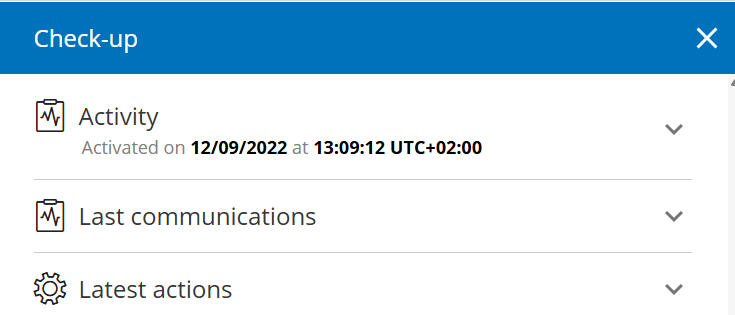
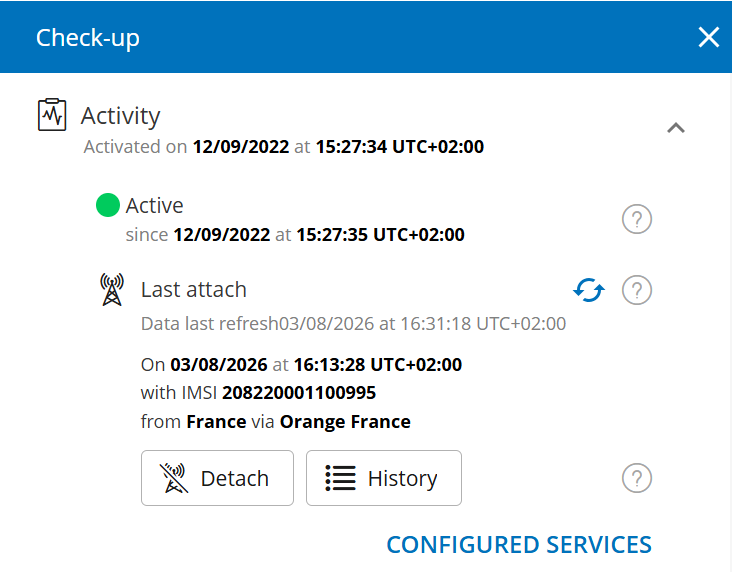
Last but not least, the right side is occupied by the checkup panel, which displays the recent and critical details :
Activity
This section includes:
- the SIM’s current status
- last CDR information
- According to your options and the current actions or status undergoing on the SIM it can also all include warnings such as:
- OSG: Bill limit reached
- DSG: Roaming data threshold reached
- OSG: OOB threshold reached
- FUP (Fair-Use Policy): the SIM has been throttled
- Operation underway: a provisioning action is ongoing as you must wait for it to complete before you can modify it again
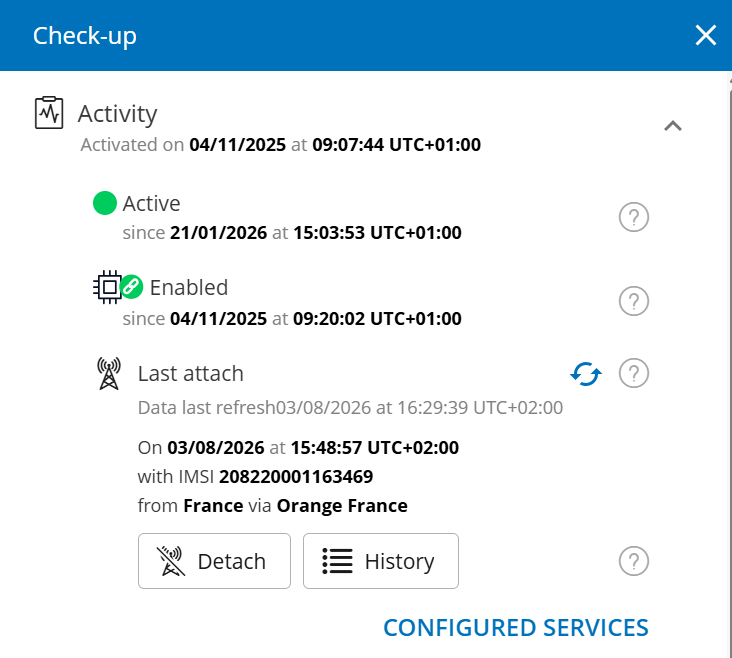
eSIM
If the SIM is an eSIM profile, you will see the installation status as well:
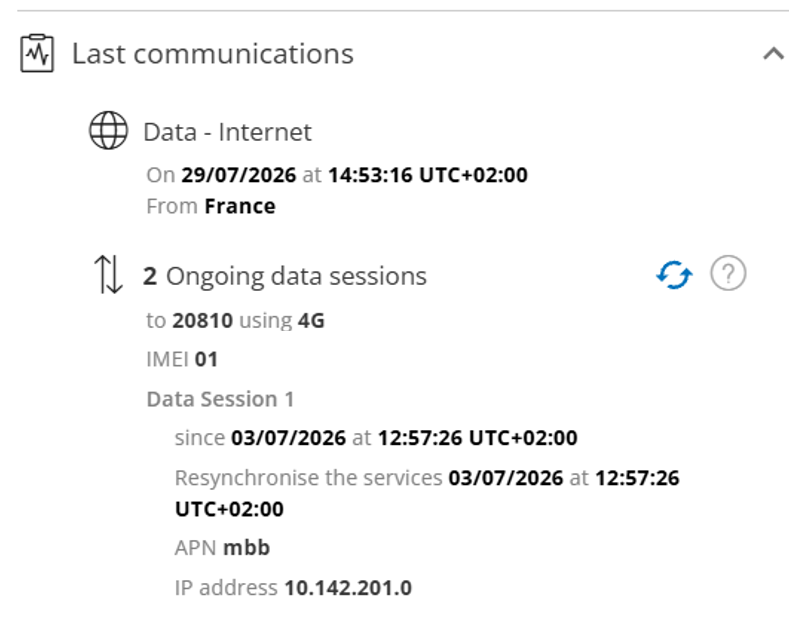
Last communications
This section deisplays the last communications, including if there is an ongoing data session
Latest Actions
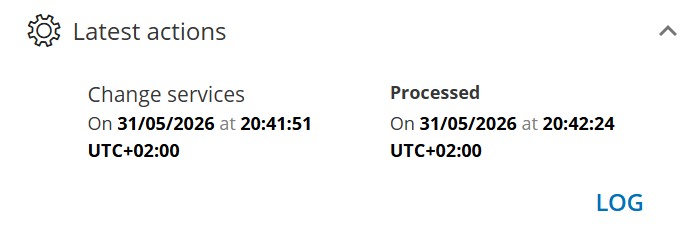
This section shows you the latest provisioning actions on the SIM and the status of each action..